Setting Alerts in TradingView using QuantLynk
Create the TradingView alert that fires the QuantLynk webhook every time your strategy generates a signal. Once it's live, trades are placed at your broker automatically.
Open the Alerts panel
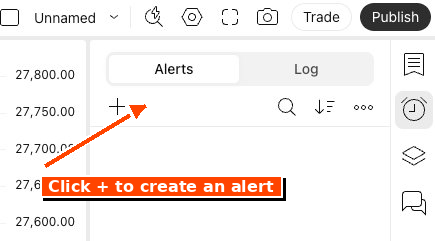
On the right side of your TradingView chart, find the alarm clock icon and click the + button under the Alerts tab.
Set the alert condition
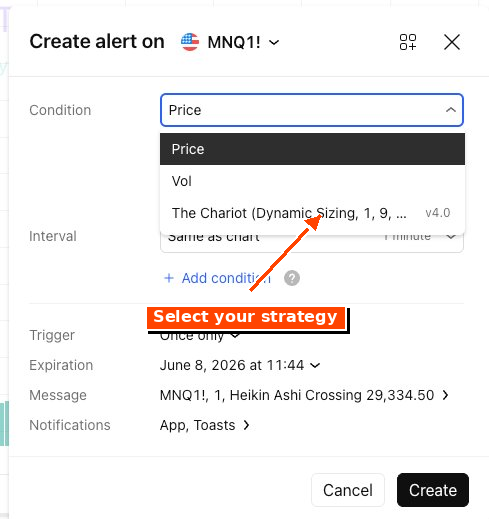
In the Create Alert dialog that opens, click the Condition dropdown and select your strategy from the list (e.g. The Chariot (Dynamic Sizing, ...)).
Edit the alert message
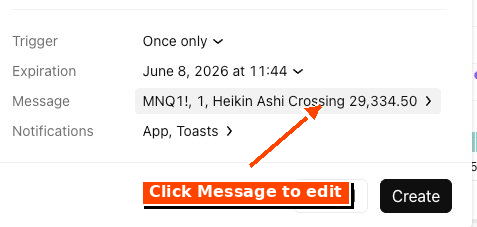
Scroll to the Message row at the bottom of the dialog and click on it.
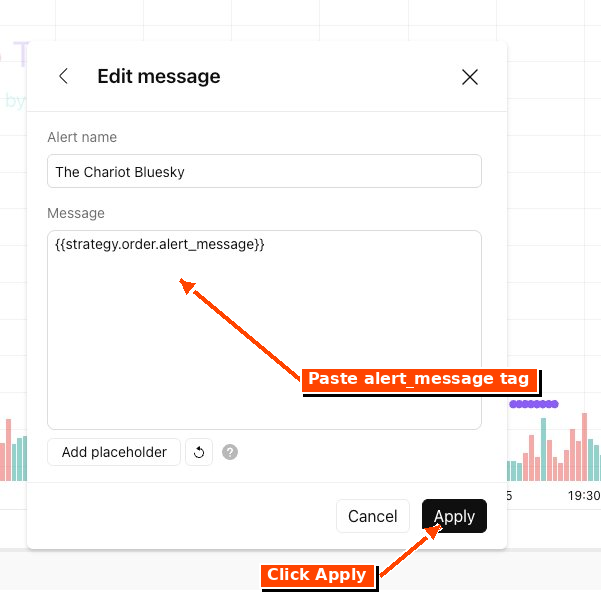
The Edit Message dialog opens. Delete the default message and replace it with exactly this:
{{strategy.order.alert_message}}
Make sure there are no leading or trailing spaces. While you're here, name the alert something memorable — a useful pattern is Strategy Name + Account, like "The Chariot Bluesky" so you know which strategy is firing on which account.
Click Apply to return to the main alert dialog.
Set the webhook URL
Back in the main alert dialog, click the Notifications row (where it says "App, Toasts ›"). In the Notifications panel:
- Paste this URL into the Webhook URL field:
https://lynk.quantvue.io/quantlynk/place-order - Check the Webhook URL box to enable it.
- Click Apply to return to the main alert dialog.
This URL is the same for everyone — it's QuantLynk's endpoint that receives the signal from TradingView.
Create the alert
Back in the main alert dialog, click Create. Your alert is now live and will fire whenever the strategy generates a signal.
Verify the full flow
The next time the strategy generates a trade signal, the flow should be:
To verify:
- In Tradovate — confirm the order appeared and was filled in your account.
- In QuantLynk — go to Trade Logs on the dashboard. You'll see the inbound webhook from TradingView, the response from your broker, and any errors.
- Wrong contract symbol in Symbol Mappings (rolled to a new quarter and you didn't update)
- User ID or Alert ID typo
- The webhook URL has a stray space
Recurring tasks
- Every 3 months: update the contract symbol in your QuantLynk alert's Symbol Mappings (see the rollover dates in Phase 2).
- When you add a new strategy: repeat Phase 2 (Steps 3–7) and Phase 3 above for that strategy. Each strategy gets its own Trading Group, alert, and TradingView alert.
- When you switch accounts (e.g. from a prop firm evaluation to a funded account): update Tradovate credentials under Manage Connections in QuantLynk.
Need help?
Email welcome@vibealgos.com with your TradingView username and a screenshot of what you're seeing. The QuantLynk help docs at login.quantvue.io/quantlynk/help cover platform-specific issues in more depth.