Performance How It Works Features Setup
Phase 1 of 3

Setting Up TradingView

A step-by-step guide for new subscribers. By the end, your strategy will be loaded and showing trades on a live MNQ1! chart.

~15 min 8 steps One-time per device
Before You Start
You will need an active Vibe Algos subscription, a TradingView Plus plan or higher, and approximately 10–15 minutes. The whole setup is one-time per device.
Steps in this guide
  1. 01Sign up for TradingView Plus
  2. 02Add CME real-time market data
  3. 03Send us your TradingView username
  4. 04Add MNQ1! to your watchlist
  5. 05Switch to Heikin Ashi candles
  6. 06Set the timeframe
  7. 07Open Indicators & find your strategies
  8. 08Accept the Risk Disclosure
Part 1 TradingView Account Setup
1

Sign up for TradingView Plus (or higher)

Go to tradingview.com, hover over the Products menu in the top navigation, and click Pricing.
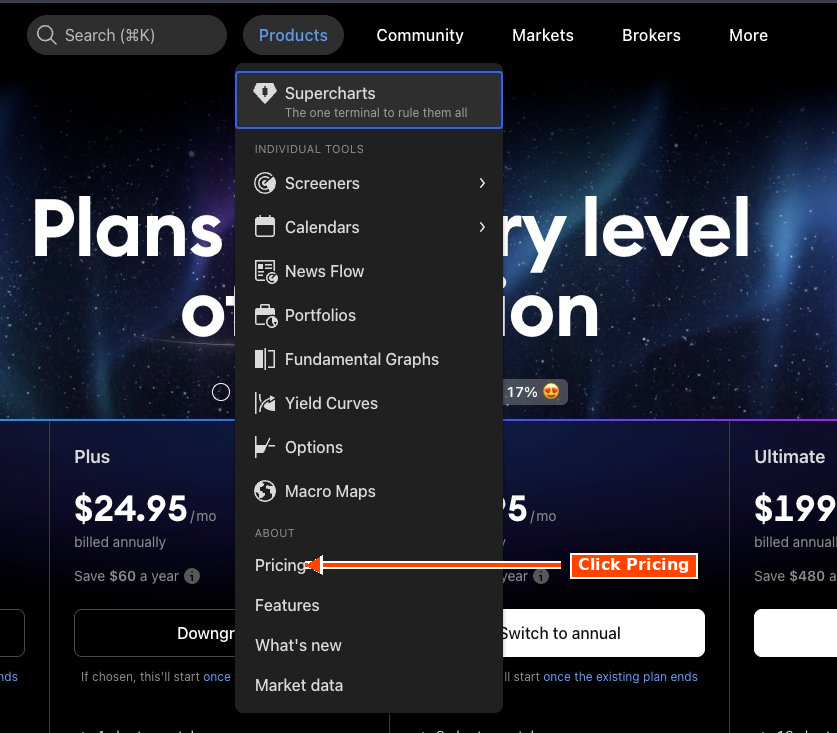
TradingView Products dropdown menu with Pricing option highlighted
Products → Pricing

Select the Plus plan ($29.95/month billed annually as of this writing). Plus gives you multiple chart layouts, which you'll want so you can run more than one algo at the same time.
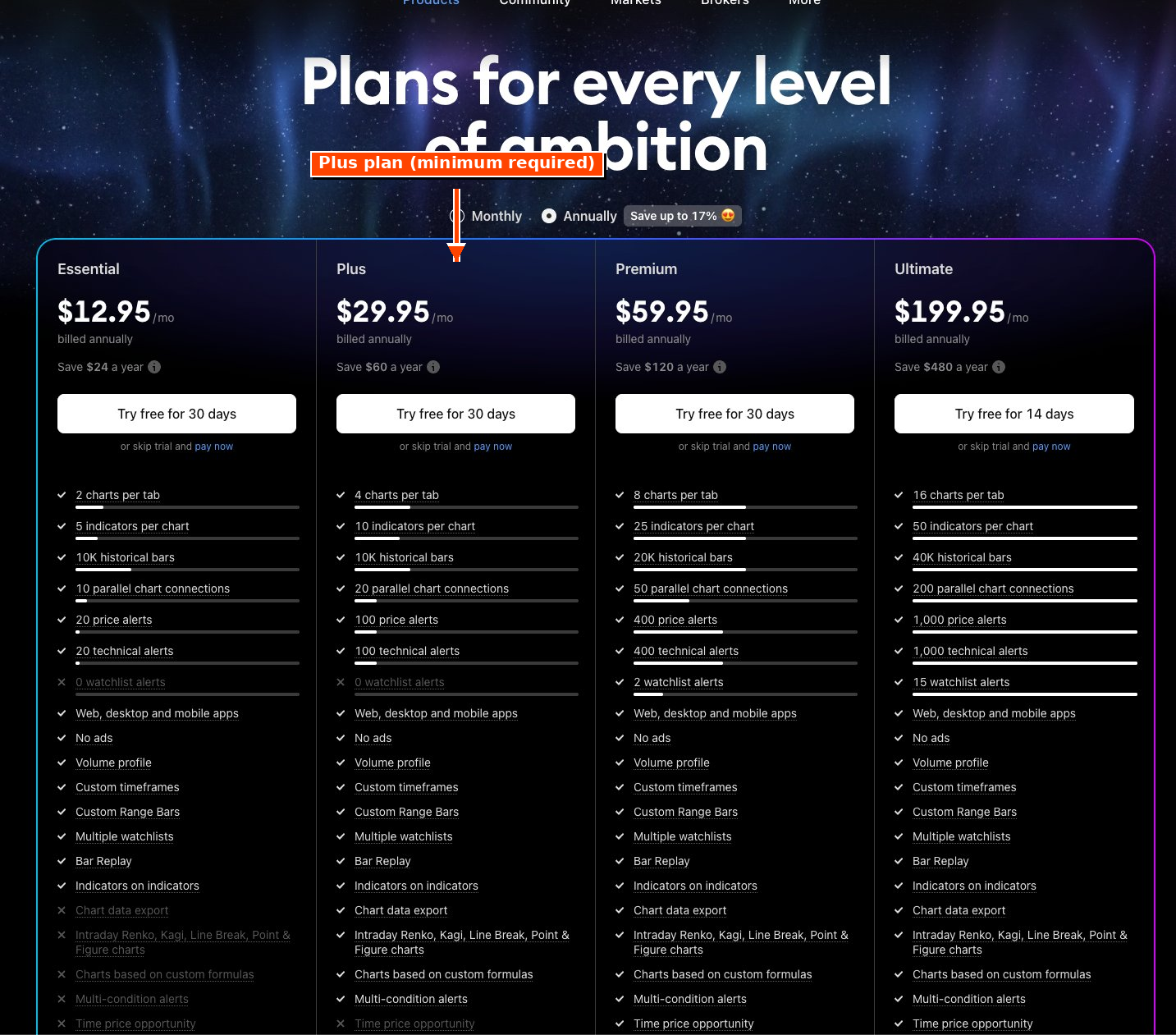
TradingView pricing tiers with the Plus plan highlighted
Plus plan — multiple chart layouts for running multiple algos
2

Add CME real-time market data

From your TradingView account, navigate to Market Data and select the CME Group bundle. The non-professional rate is $7/month, which gives you live MNQ futures data. Without this, your data will be on a 10-minute delay.
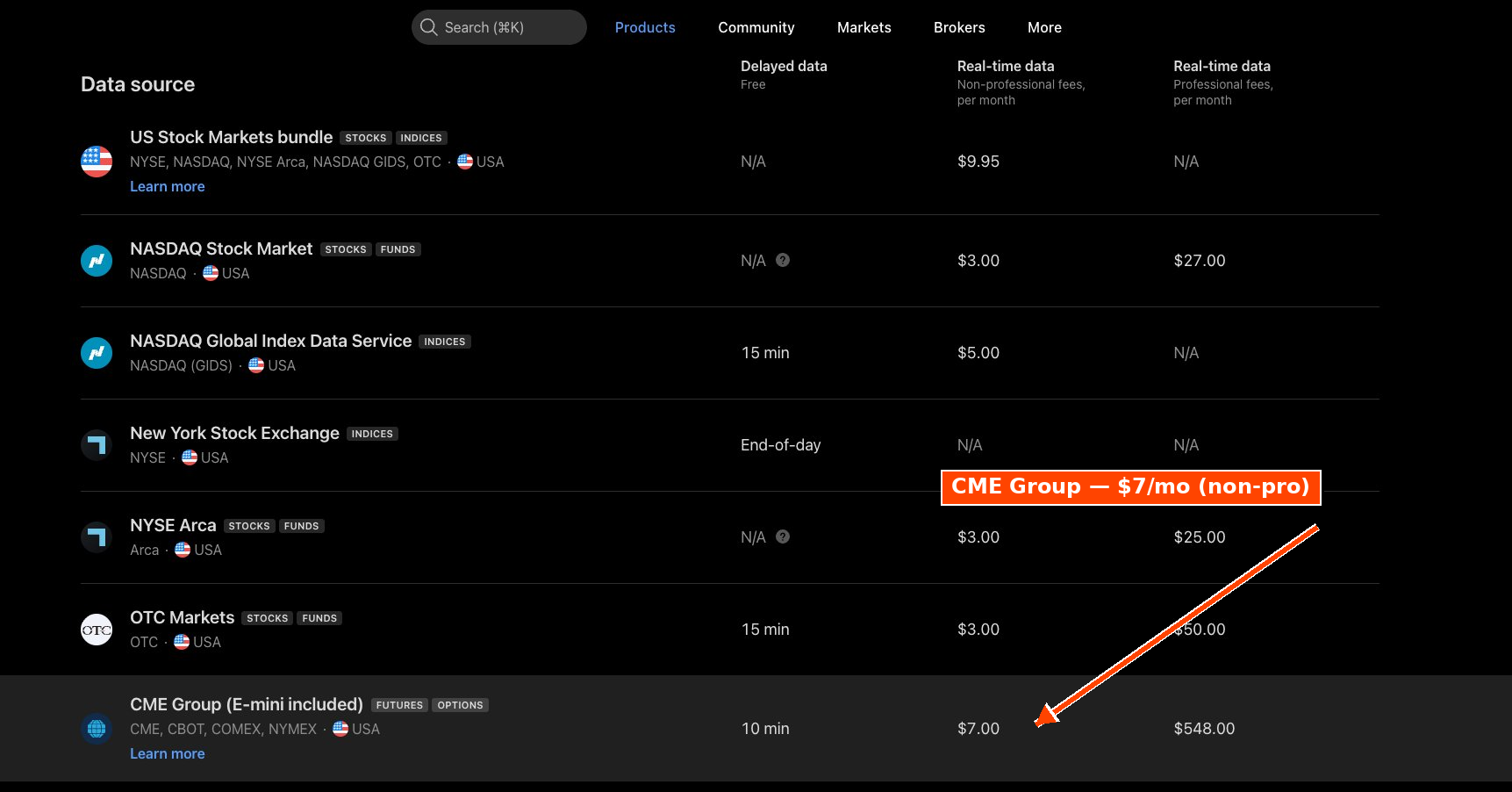
TradingView Market Data page with CME Group bundle highlighted
Market Data → CME Group bundle
Why this matters
Without CME real-time data, every trade signal you see will be 10 minutes late, and any backtests will mismatch live execution.
3

Send us your TradingView username

Click your profile avatar in the top-left of TradingView. Your username appears at the top of the dropdown. Email it to welcome@vibealgos.com.
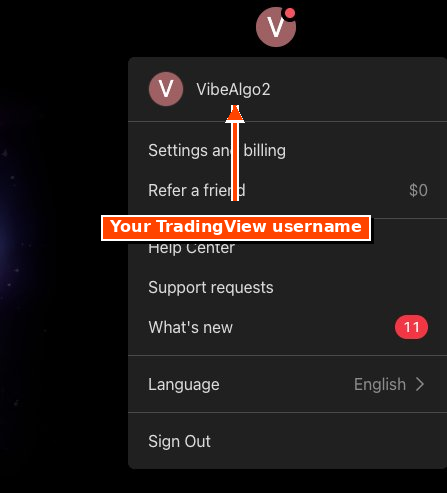
TradingView profile dropdown showing where your username appears
Profile avatar → username at the top
We will grant your account access to the Vibe Algos strategies and email you when access is live. This usually takes less than 24 hours.
Part 2 Set Up Your Chart
4

Add MNQ1! to your watchlist

Open Supercharts in TradingView. In the right-side Watchlist panel, click the + button.
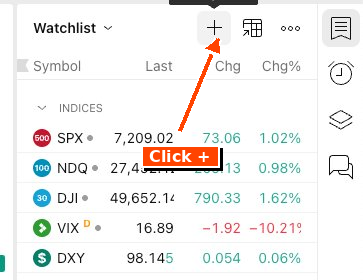
TradingView watchlist panel with the plus button highlighted
Watchlist → + button

Type MNQ in the search box. Click the small expand arrow on the right side of the MNQ row to see all available contracts.
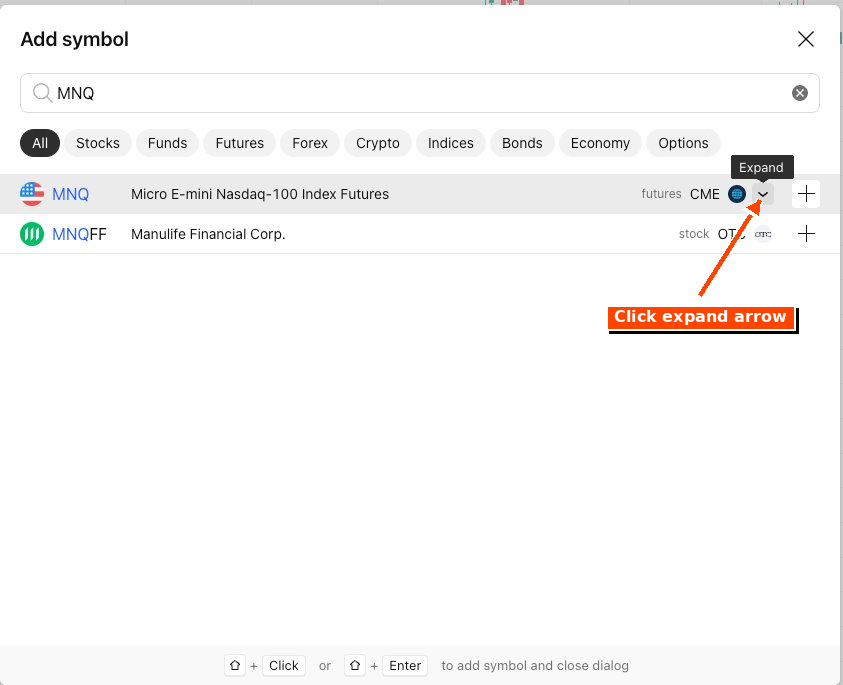
TradingView Add Symbol dialog with MNQ search and expand arrow highlighted
Search MNQ → expand arrow

Select MNQ1! (the continuous front-month contract) by clicking the + on the right of that row. Then click MNQ1! in your watchlist to load it on the chart.
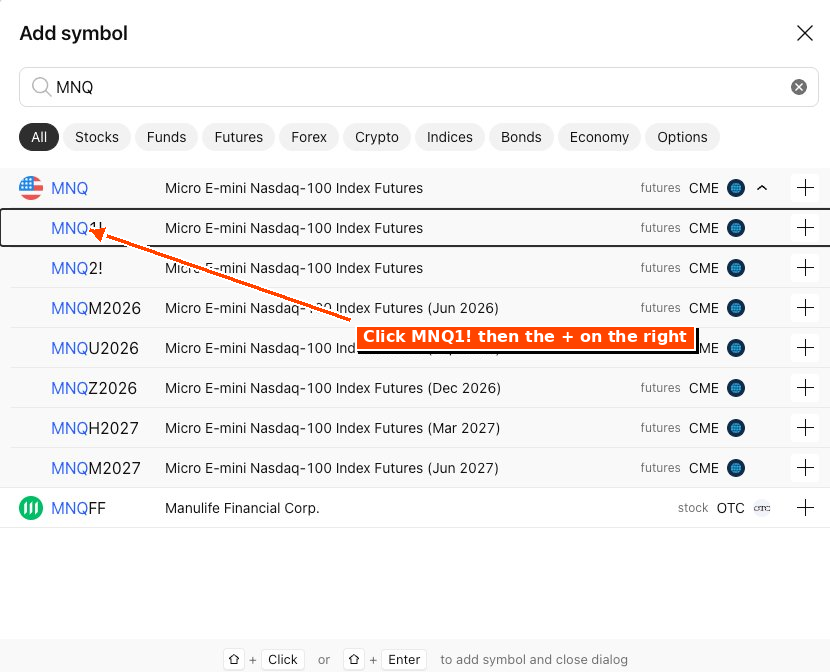
TradingView Add Symbol dialog showing the expanded MNQ contract list with MNQ1! highlighted
MNQ1! — continuous front-month contract
5

Switch to Heikin Ashi candles

At the top of the chart, click the Candles icon in the toolbar.
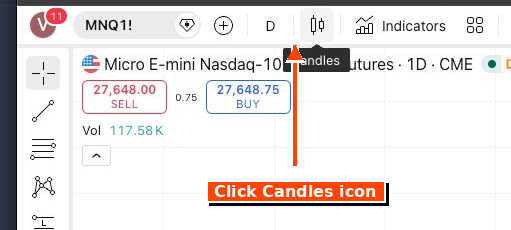
TradingView chart toolbar with the Candles icon highlighted
Chart toolbar → Candles icon

Select Heikin Ashi from the dropdown.
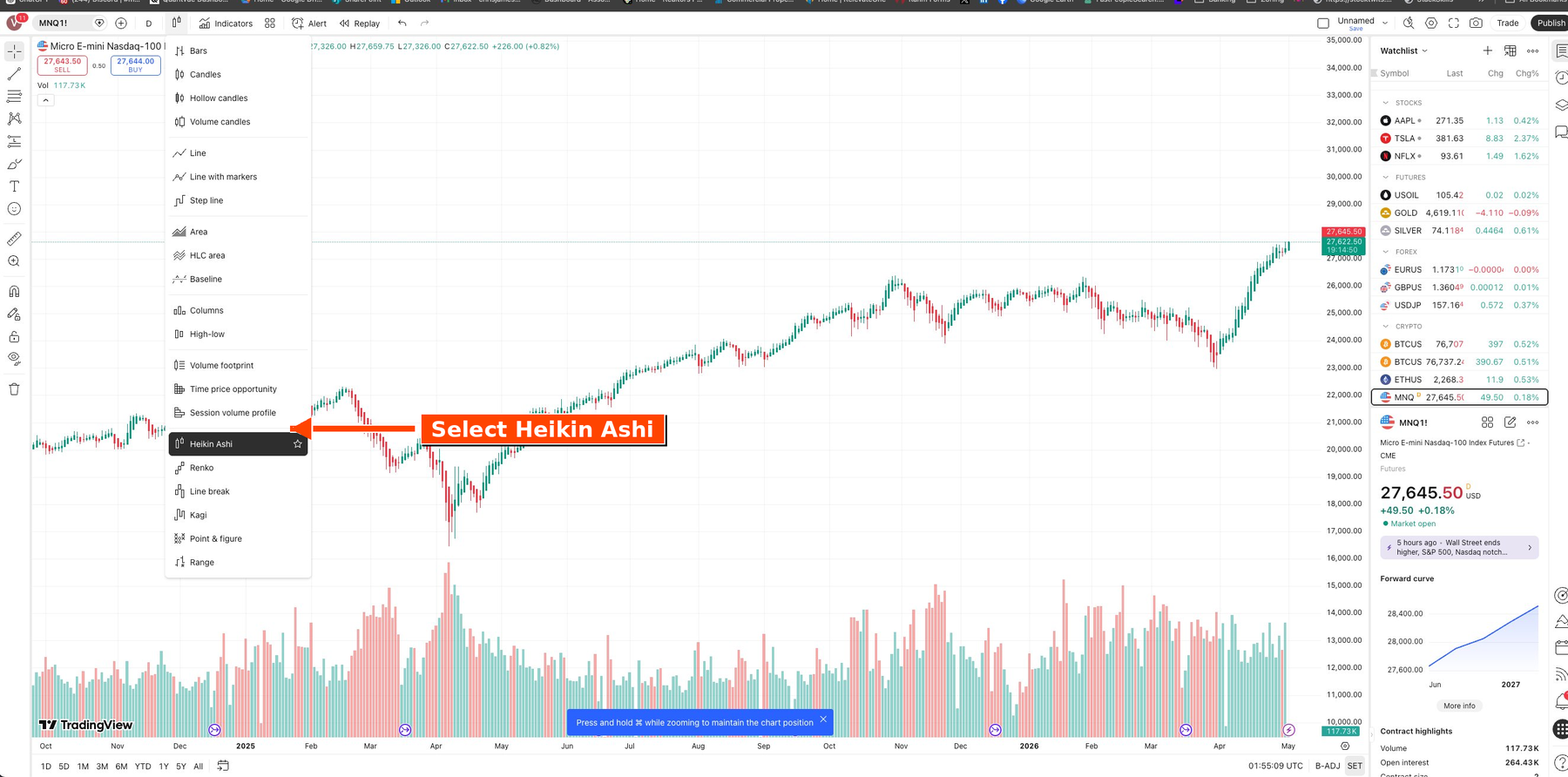
TradingView chart type dropdown with Heikin Ashi highlighted
Chart type → Heikin Ashi
Important
All Vibe Algos strategies are designed to run on Heikin Ashi candles. Using regular candles will produce different and incorrect results.
6

Set the timeframe

Click the timeframe selector (just to the left of the Candles icon) and set it to the timeframe your strategy requires. Each Vibe Algos strategy specifies its required timeframe in its setup instructions.
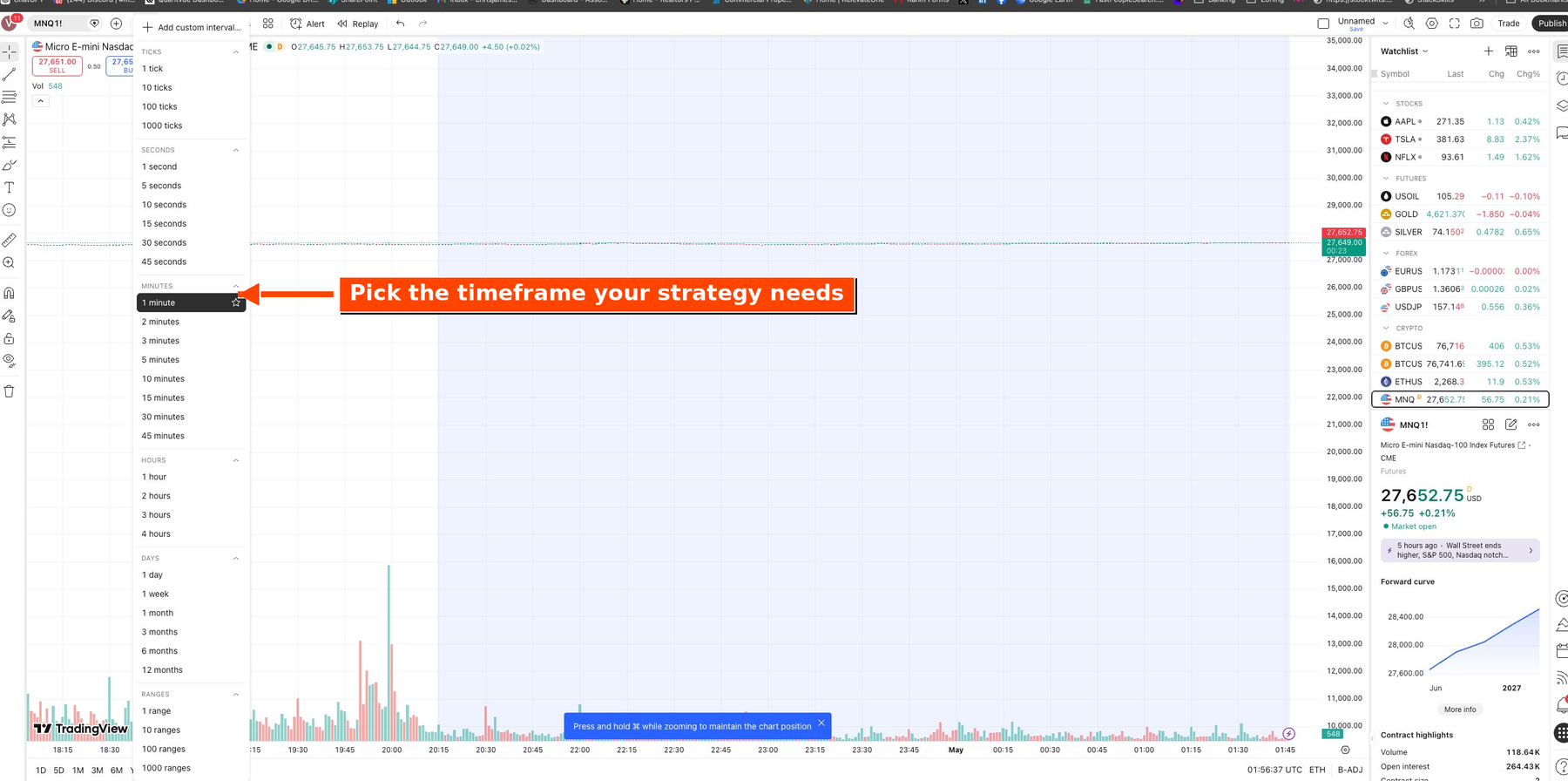
TradingView timeframe selector dropdown
Timeframe selector
Part 3 Load Your Strategy
7

Open Indicators panel and find your strategies

Click Indicators in the top toolbar.
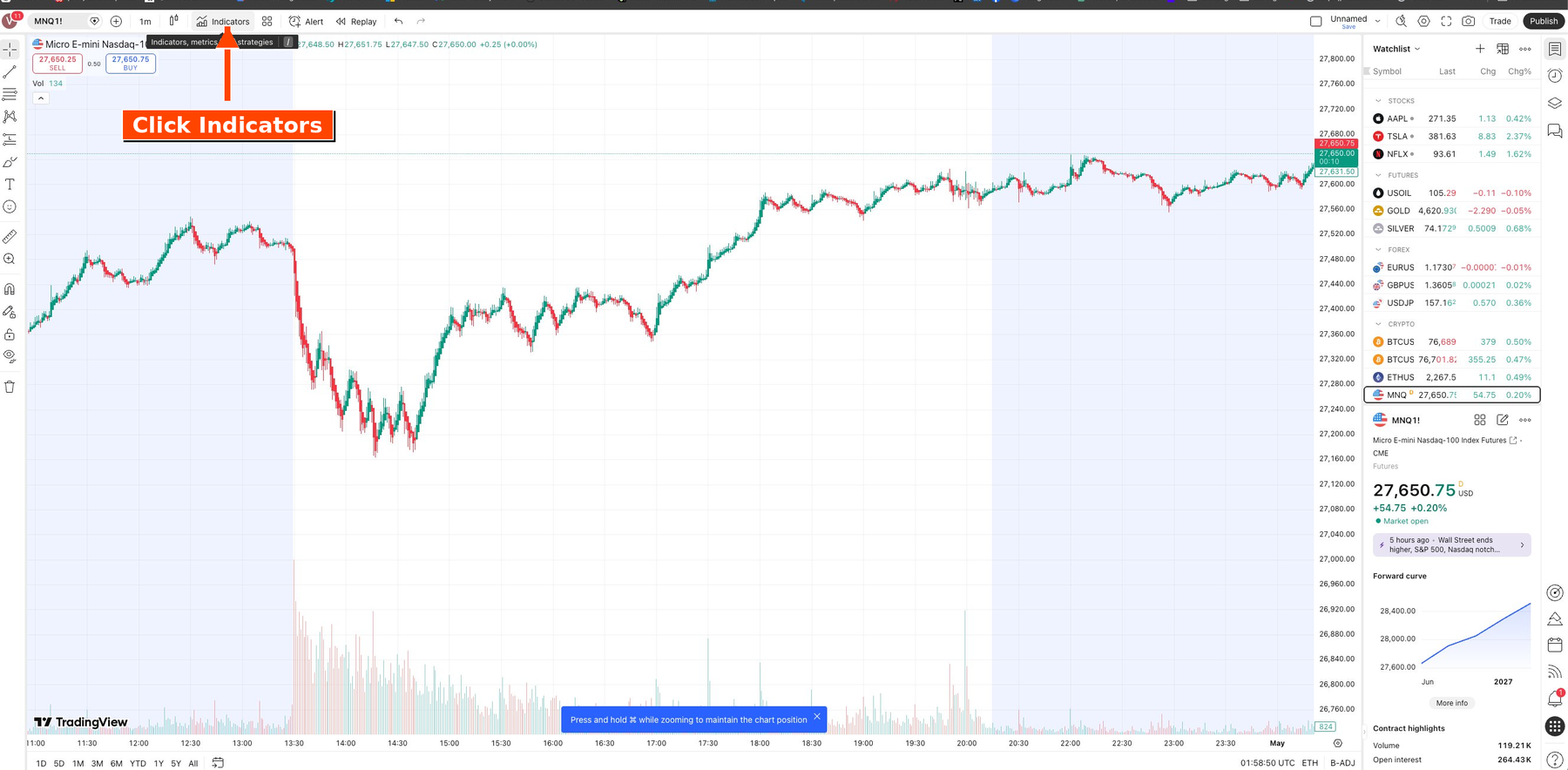
TradingView chart toolbar with the Indicators button highlighted
Top toolbar → Indicators

In the dialog that opens, select Invite-only from the left sidebar.
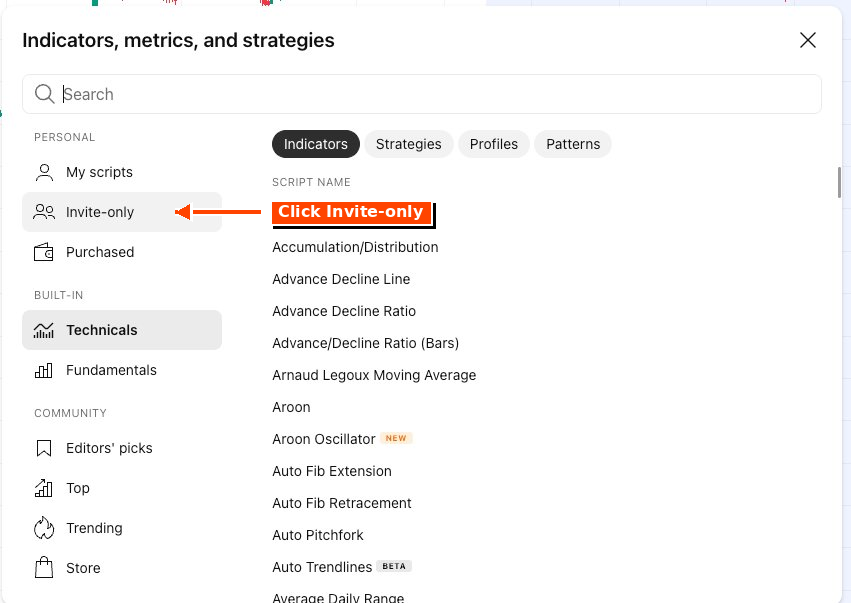
TradingView Indicators dialog with Invite-only sidebar option highlighted
Indicators dialog → Invite-only

You will see your Vibe Algos strategies listed. Click any strategy name to load it on the chart. You can only run one strategy per chart, but you can open multiple chart tabs.
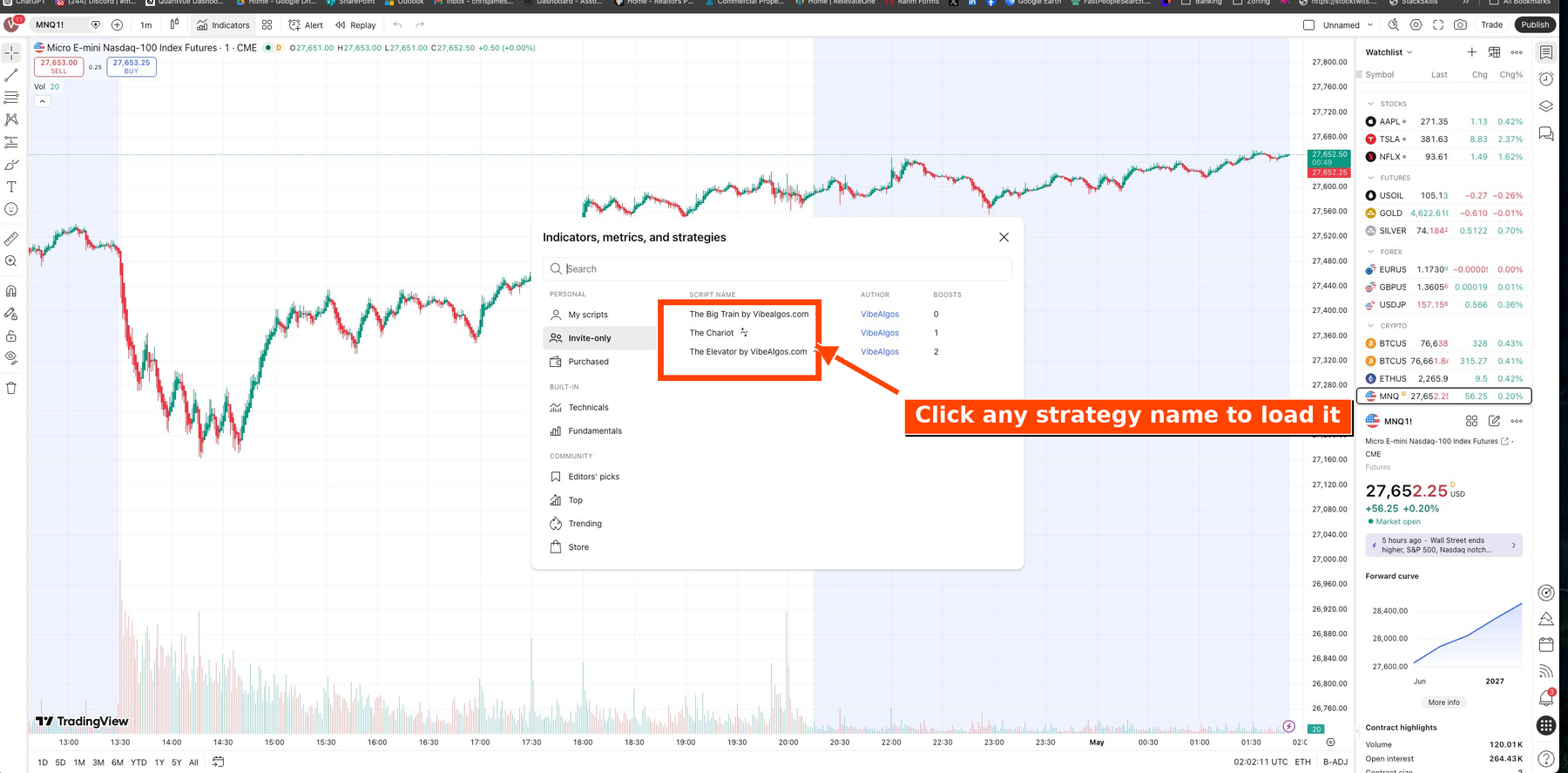
TradingView Indicators dialog showing the list of available Vibe Algos strategies
Your Vibe Algos strategies
If your strategies do not appear here, your access has not been granted yet. Contact welcome@vibealgos.com.
8

Accept the Risk Disclosure to enable trades

When the strategy first loads, no trades will appear on your chart. This is intentional — you must acknowledge the Risk Disclosure first. Hover your mouse over the strategy name in the top-left of the chart and click the Settings (gear) icon.
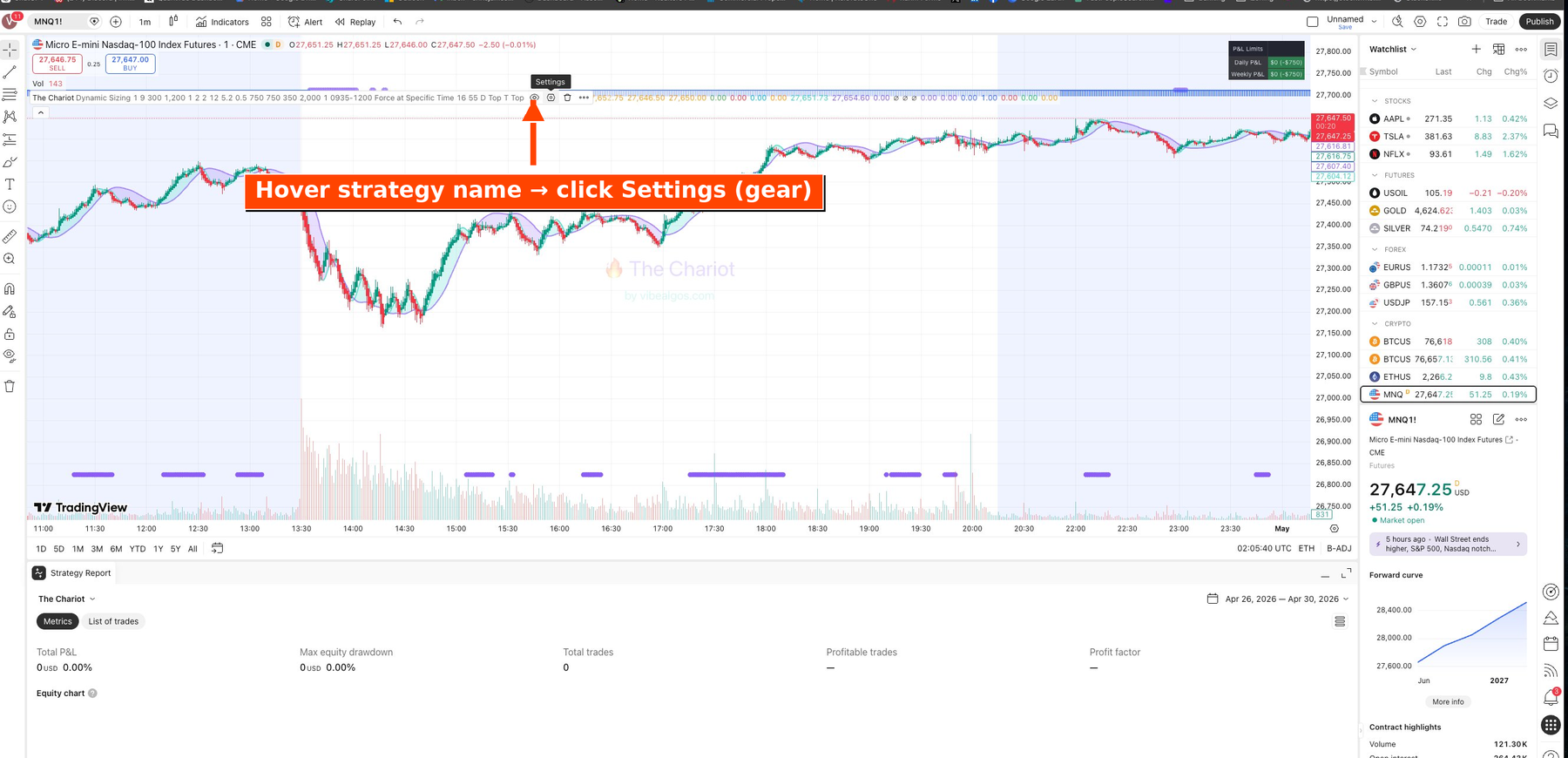
TradingView chart with strategy loaded, Settings gear icon highlighted
Hover the strategy name → gear icon

In the Inputs tab, check the box at the top labeled "RISK DISCLOSURE & USER AGREEMENT" and click OK. Trades will now appear on your chart.
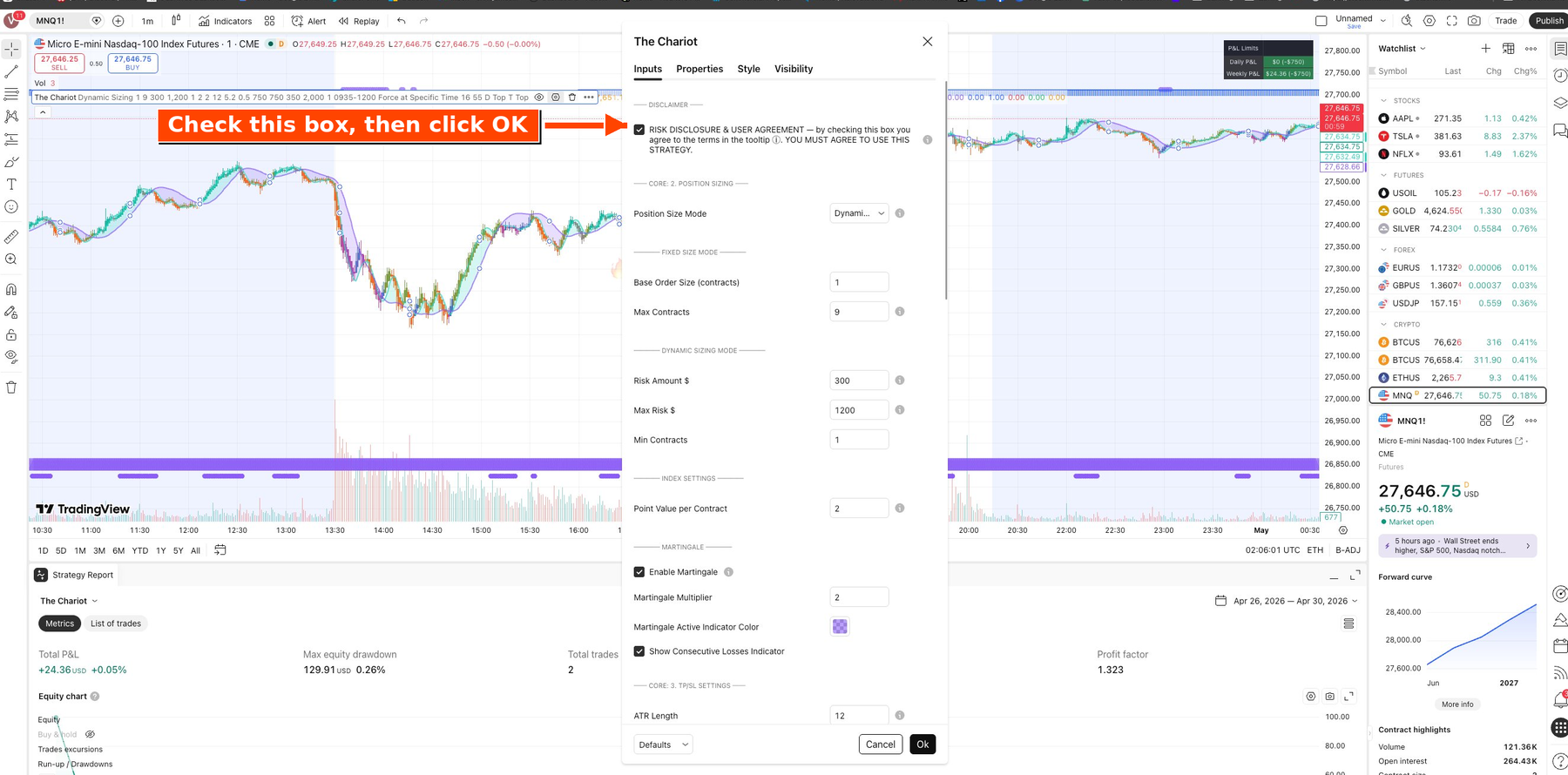
TradingView strategy settings dialog with the Risk Disclosure checkbox highlighted
Inputs → Risk Disclosure checkbox
You are ready
TradingView is now set up. Your strategy is loaded, your candles are correct, and the Risk Disclosure has been accepted. You should be able to see some trades that have previously happened on the chart, and moving forward new trades should show up as they fire. The next step is connecting these signals to your broker through QuantLynk so trades execute automatically.
Phase 2
Setting Up QuantLynk

Connect QuantLynk — the alert relay between TradingView and your broker — so signals fire trades automatically.

Continue to Phase 2 →

Need help?

Email . Include your TradingView username and a screenshot of what you are seeing if possible — it speeds things up.

← Back to Setup overview

The information and tools provided by Vibe Algos LLC, including all strategies, indicators, tutorials, and supporting materials, are for educational and informational purposes only. Vibe Algos LLC is not a registered investment advisor, broker-dealer, or commodity trading advisor and does not provide individualized investment, tax, legal, or financial advice. Nothing in this guide or any related materials constitutes a recommendation to buy or sell any security, futures contract, or other financial instrument. Past performance is not indicative of future results. Hypothetical and forward-tested performance has inherent limitations and may not reflect the impact of real market conditions, execution latency, slippage, or commissions on actual trading. Trading futures involves a substantial risk of loss and is not suitable for every investor. You may lose more than your initial investment. You alone are responsible for evaluating the risks associated with the use of any strategy and for all decisions and outcomes arising from your use of these tools.